
When a lesson does not happen, you can make it right in one of two ways:
- Refund the money. Soniq Studio adds the refund to a credit note. A credit note is the document that records money you owe back on an invoice.
- Owe a makeup lesson. Soniq Studio adds a lesson credit. A lesson credit is one lesson you owe a family. It is a lesson, not money. When you teach the replacement lesson, you use the lesson credit on it, and that lesson is not invoiced.
For the status names used below, see Payment and mandate statuses and Invoice fields and statuses.
Choose the right tool
| Situation | Use |
|---|---|
| One lesson did not happen | Cancel the lesson |
| Several past lessons need settling, for example a student left mid-term | Settle recent lessons |
| A paid invoice needs money back, not tied to one lesson | Refund from the invoice |
| You want to give a family an extra lesson as goodwill | Add a lesson credit |
You can refund only an invoice with the status Paid or Part Refunded. For an Open invoice, cancel the invoice instead. See How to send an invoice.
Cancel a lesson and choose what happens to the money
- Select Timetable in the sidebar.
- Select the lesson.
- Select Cancel selected event (the bin icon) in the Selected Event panel.
- Under What happens to the money?, choose one option:
- No adjustment: the lesson does not happen and nothing is owed back.
- Owe a makeup lesson: adds a lesson credit for this family.
- Refund the money: adds the price of this lesson to a draft credit note.
- Enter a Reason (optional), for example “Teacher unwell”.
- Select This event.
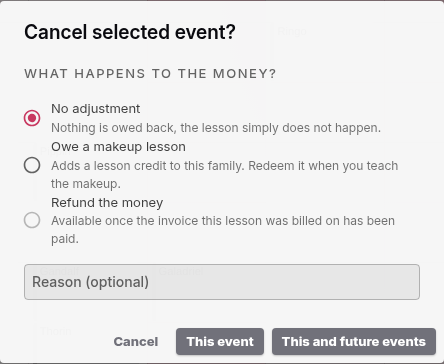
What happens to the money? shows only when the lesson is on an invoice. Refund the money is available only after that invoice is paid.
Settle several lessons from the contact page
- Select Contacts in the sidebar and open the student.
- Select Manage credits in the Lesson credits card at the top of the page. A dialog opens. Under Settle recent lessons, it lists the student’s lessons from the last 12 weeks.
- For each lesson, choose Leave, Credit or Refund.
- Enter a Reason (optional), for example “Teacher unwell”.
- Select Settle.
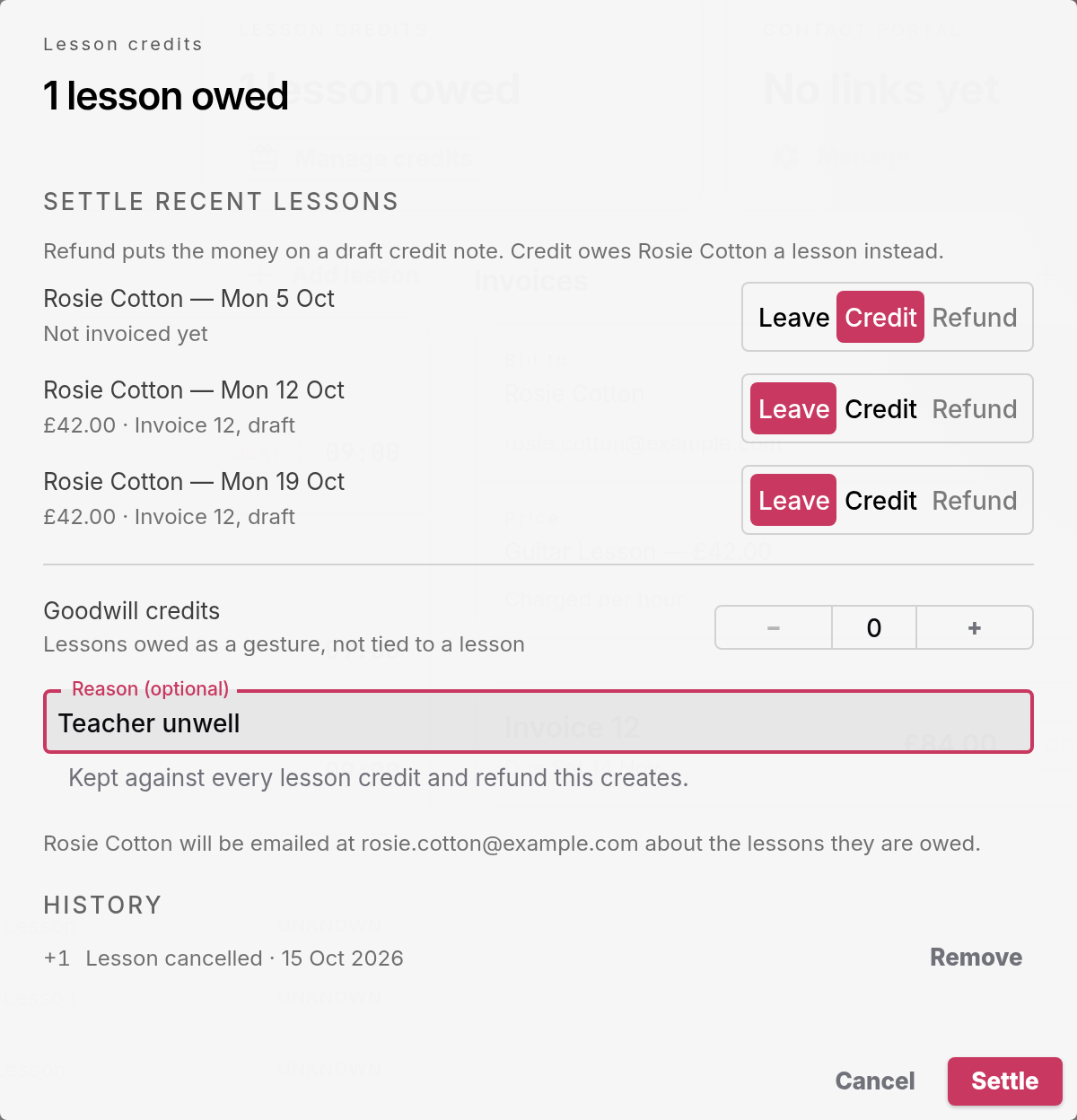
Each Credit adds one lesson credit. Each Refund adds that lesson’s price to a draft credit note. Refund is available only for lessons on a paid invoice. Each lesson shows whether it is invoiced yet, and on which invoice.
Settle stays greyed out until you choose Credit or Refund for a lesson, or add a goodwill credit.
If the student has a linked parent or carer who pays, the credit or refund goes to that payer.
Refund from an invoice
- Select Invoices in the sidebar and open the paid invoice.
- Select Refund under Actions.
- Check the Amount. It starts at the full invoice amount. Lower it for a partial refund.
- Enter a Reason (optional).
- Select Add to Credit Note.
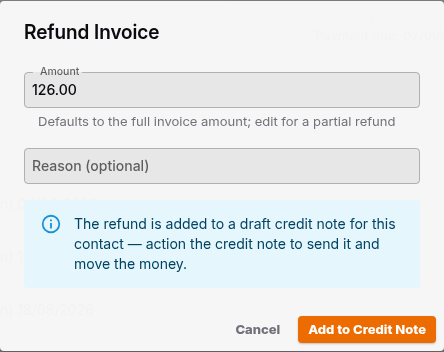
The refund goes onto a draft credit note for this contact. No money moves yet, and nothing is sent yet.
You cannot refund more than the invoice total, across all its credit notes.
Send the credit note and record the refund
A credit note starts as Draft. You send it with Action & Send.
- Open the student’s contact page.
- Select the credit note under Credit notes, below the invoices.
- Select Action & Send under Actions.
- If you have already returned the money, tick I’ve already returned the money — record the refund now. Add Notes (optional), for example “Returned by bank transfer 11 Jun”.
- Select Action & Send.
What happens next depends on the tick box:
| You ticked the box | Credit note status | Email to the payer |
|---|---|---|
| No | Refund Owed | The credit note |
| Yes | Settled | A refund receipt |
When a credit note shows Refund Owed, return the money to the payer yourself, for example by bank transfer. Then record it:
- Open the credit note.
- Select Record Refund.
- Check the Amount and add Notes (optional).
- Select Record Refund.
When the full amount is recorded, the credit note changes to Settled and the payer gets a refund receipt. The invoice changes to Part Refunded or Refunded.
To drop a credit note you do not need, select Void. A voided credit note shows Cancelled. You cannot undo this.
Refund a payment collected through GoCardless
Soniq Studio does not send money back through GoCardless for you. Make the refund in your GoCardless dashboard.
When GoCardless reports the refund, Soniq Studio creates its own credit note for it with the status Refund Owed. The credit note changes to Settled when GoCardless pays the refund. Do not also select Refund on the invoice, or the refund is recorded twice.
If the GoCardless refund fails, the credit note stays Refund Owed and Soniq Studio emails you.
Add or remove a lesson credit
The Lesson credits card at the top of the contact page shows how many lessons the family is owed, for example “1 lesson owed”.
Lesson credits belong to the contact who pays. On a student’s contact page, the card shows their parent’s or carer’s lesson credits if one pays for their lessons. A credit you add goes to that payer too.
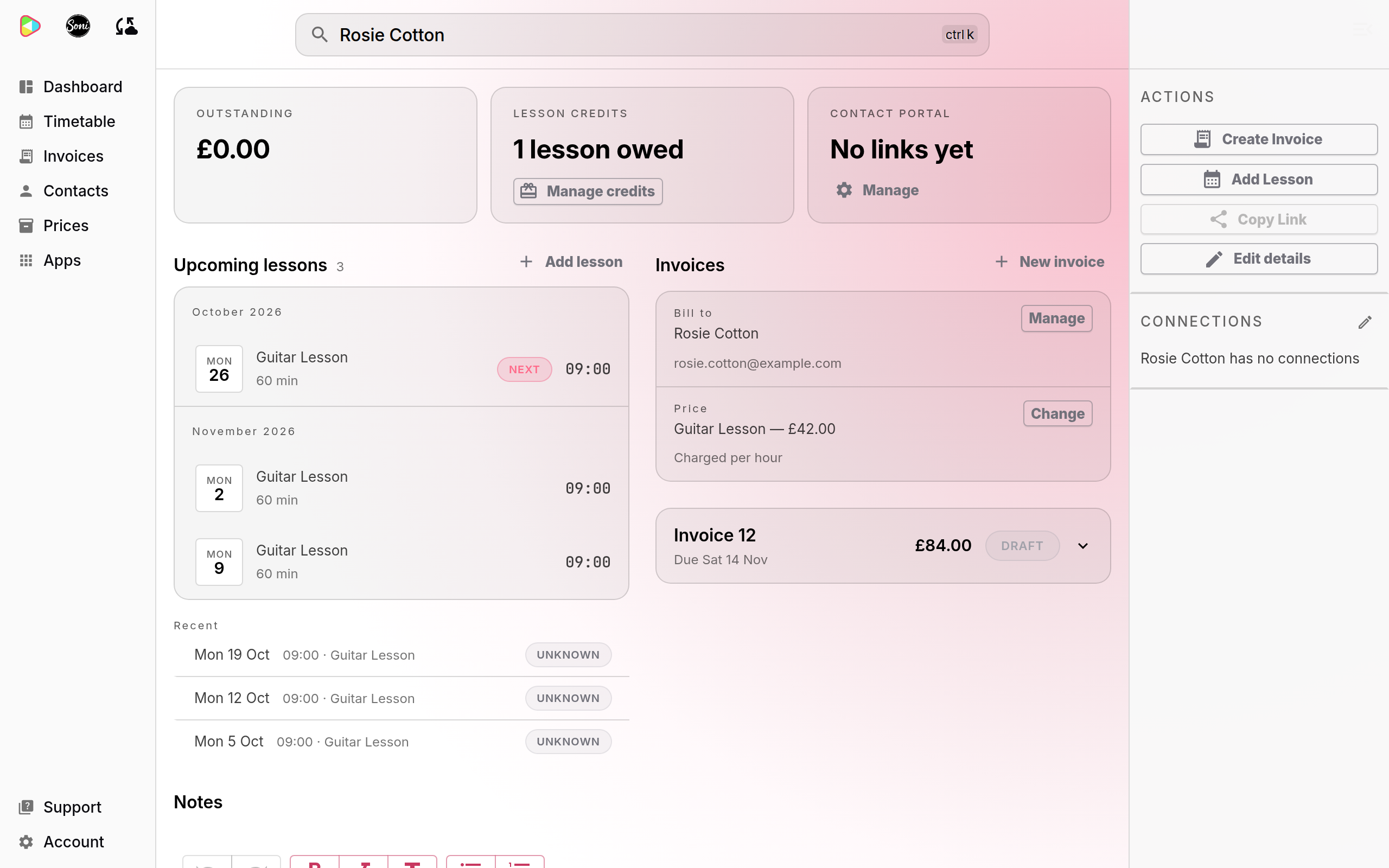
To add a lesson credit that is not tied to a lesson, for example as goodwill:
- Select Contacts in the sidebar and open the contact.
- Select Manage credits in the Lesson credits card.
- Under Goodwill credits, select + once for each lesson you want to add.
- Enter a Reason (optional). The family sees it in the email.
- Select Settle.
The dialog tells you who will be emailed about the lessons they are owed. The family gets an email about the lesson credit, if they have an email address.
To remove a lesson credit you added by mistake:
- Select Manage credits in the Lesson credits card.
- Find the credit under History, and select Remove next to it.
- Enter a Reason (optional).
- Select Remove credit.
Soniq Studio keeps both entries in History, so you can see what happened. The family is not emailed.
Use a lesson credit on a lesson
- Select Timetable in the sidebar.
- Select a lesson for the family that is owed a lesson. The lesson must not be on an invoice yet.
- Select Use a lesson credit in the Selected Event panel.
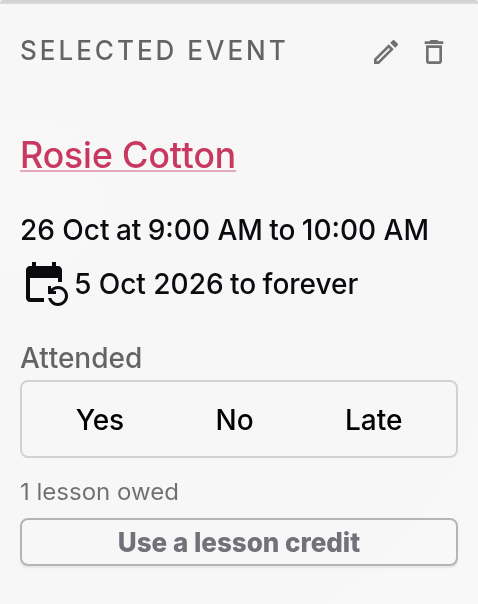
The panel shows “Lesson credit used — this lesson will not be invoiced.” The family gets an email about the lesson.
To undo it, open Manage credits on the contact page and select Give back next to Lesson credit used under History.